How to Squarespace
The most important edit options and things to pay attention to when editing your website
Editing existing pages
Changing existing text fields
Sqaurespace automatically adjusts the spacing of the elements in your section when your text field changes size. Try to make edits by typing in the text rather than copy pasting big chunks of text. That could easily distort your layout so that you’ll have to rearrange the elements afterwards.
Changing existing images
To replace an existing image, just click the pen symbol and choose “REPLACE”. The white circle in the miniature view lets you define the central and most crucial part of the image - this will always be visible, also if the image changes size. For portraits, put the white circle on the level of the person’s eyes.
Adjusting the mobile version
Whenever you make substantial changes to your pages desktop version, don’t forget to adjust the mobile version as well. The blue dot next to the phone icon in the top right corner indicates that adjustments are necessary.
Save a section (before changing it)
You can save sections and re
Adding new pages
Link the new page to your website
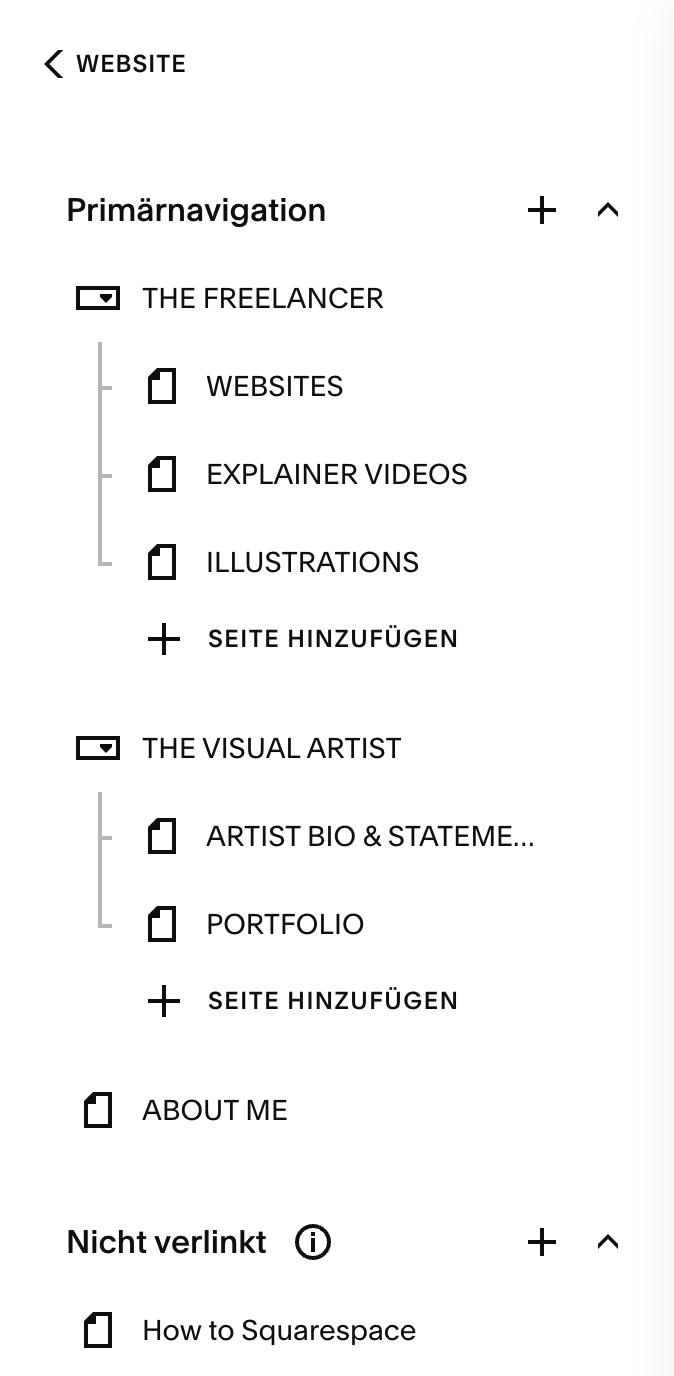
On the left page in your Squarespace window you see the list of pages that are part of your navigation (the header menu) on top and the pages that are not mentioned there below (“not linked”). When building a new site ask yourself: Is this a page that everyone needs easy access to?
If yes, drag and drop it up into the navigation section. If no, think about who needs access to this page in which situation.
Is it enough if you send them the link to the page when they need it? In that case just leave the space unlinked and copy the URL whenever you need it.
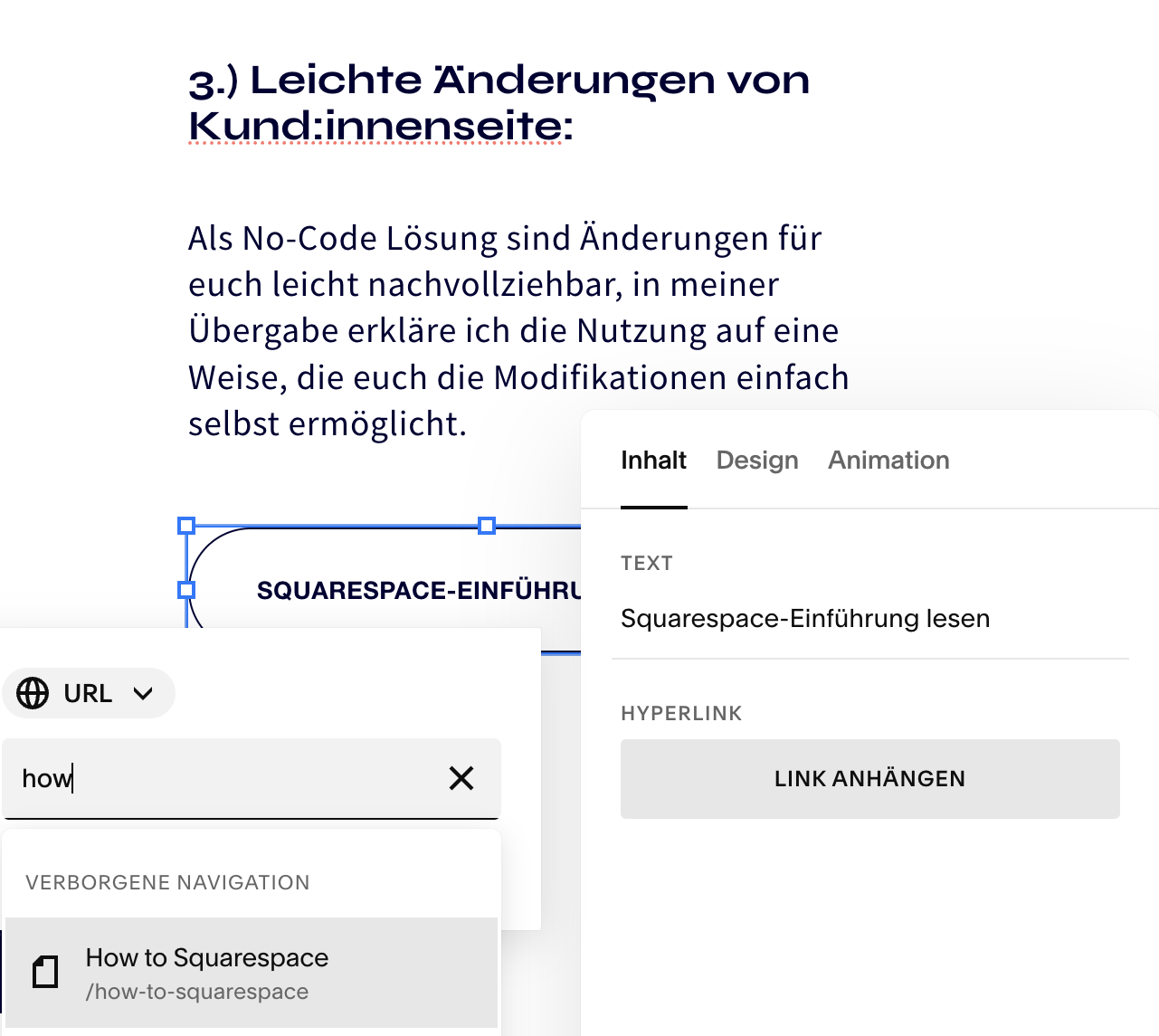
Or is there a specific moment on the website when people need access? In that case you can create a button on that page and link the page using that button.
How to connect Social Media to the page
Adding links to external pages
Define the page URL
Write the SEO description
Make the page multilingual
Editing the blog
Write a new blog article
Change the order of blog posts
Add or change a blog post category
Change a blog post image